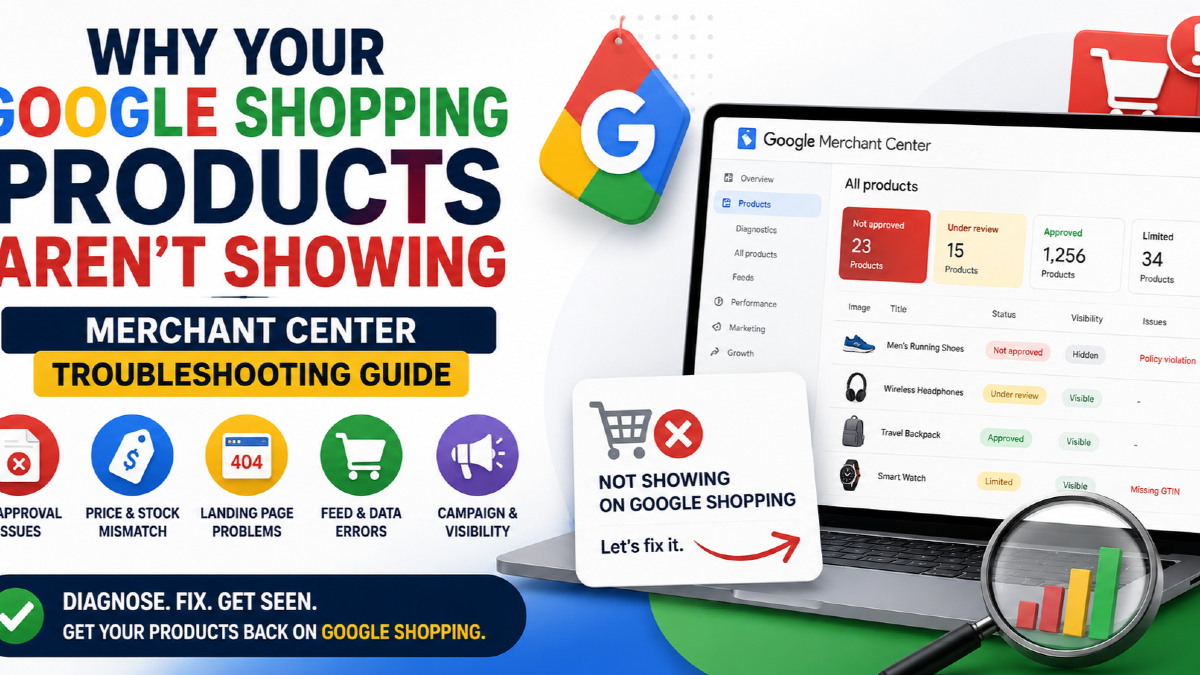
If your products are not showing on Google Shopping, start by identifying exactly where the product is failing: product sync, Merchant Center approval, product visibility, policy compliance, landing-page consistency, free-listing eligibility or Google Ads campaign delivery.
A common mistake is to see products inside Google Merchant Center and assume they should automatically appear on Google.
That is not how the system works.
A product can exist in Merchant Center but still be:
- under review;
- not approved;
- approved with limited visibility;
- approved but manually hidden;
- eligible for free listings but not Shopping ads;
- eligible for Shopping ads but excluded from your campaign;
- fully eligible but simply not winning enough auctions to receive impressions.
The fastest way to fix the problem is therefore not to start rewriting product titles or increasing bids.
First identify which layer is preventing the product from appearing.
Google Shopping Products Not Showing: Quick Diagnosis
| What you see | Most likely area to check | What to do first |
|---|---|---|
| Product does not exist in Merchant Center | Product source or store sync | Check whether the product was submitted successfully |
| Product says Under review | Google review | Check for issues and allow review time |
| Product says Not approved | Policy or product-data issue | Open Needs attention and fix the blocking error |
| Product says Limited | Missing or weak product data | Review warnings and affected marketing methods |
| Product says Approved but Visibility is off | Merchant Center visibility | Make the product visible |
| Product is approved and visible but not appearing free | Free-listing eligibility or relevance | Check marketing methods and account eligibility |
| Product appears free but not in Shopping ads | Google Ads campaign | Check campaign eligibility, product inclusion and targeting |
| All products disappear suddenly | Account-level issue or data-source problem | Check Merchant Center account issues and feed/source status |
| Only some products are missing | Item-level data or policy issue | Compare affected products with products that still show |
| Everything is approved but impressions are extremely low | Auction, demand or campaign competitiveness | Move from eligibility troubleshooting to traffic diagnosis |
This distinction matters because “not approved,” “not visible,” and “approved but receiving no impressions” are three different problems.
How a Product Gets From Your Store to Google Shopping
Before troubleshooting, understand the path your product takes.
A simplified ecommerce flow looks like this:
Online Store → Product Data Source → Merchant Center → Marketing Method → Google Ads Campaign or Free Listing → Shopper
A problem at any point can stop the product from appearing.
1. Your ecommerce platform
This may be Shopify, WooCommerce, Magento, a custom ecommerce platform or another system.
Your store contains the original information about:
- product title;
- price;
- availability;
- images;
- variants;
- product URLs;
- brand;
- product identifiers.
2. Your product data source
Google needs product data to enter Merchant Center.
Depending on your setup, this may happen through:
- an ecommerce platform integration;
- the Google & YouTube Shopify app;
- a WooCommerce feed plugin;
- a scheduled file;
- an XML or CSV feed;
- Merchant API;
- another feed-management platform.
3. Google Merchant Center
Merchant Center processes the product data and evaluates whether each item is eligible for different Google marketing methods.
4. Marketing method
A product might be used for:
- Shopping ads;
- free listings;
- other eligible Google shopping surfaces.
Eligibility can differ by method, country and product.
5. Google Ads
If you are paying for Shopping traffic, Merchant Center eligibility is only one part of the process.
Your Google Ads campaign must also be active, correctly configured and able to serve the product.
For a deeper explanation of campaign structure and product-led advertising, see my guide to Google Shopping Ads.
Step 1: Check the Product Status in Merchant Center
Do not begin with the campaign.
Begin with the product.
Open Merchant Center and inspect the affected product.
Google currently separates two concepts:
Status tells you whether Google has approved the product.
Visibility tells you whether the product is currently allowed to show.
This distinction is extremely important.
Under review
Google is still evaluating the product.
This is common when:
- your Merchant Center account is new;
- products were recently submitted;
- the product is being reviewed for a new marketing method or country.
A new Shopping-ad product review can take several business days.
Do not repeatedly edit a product simply because it has been under review for a short period. Every unnecessary change makes diagnosis harder.
Processing
Google is still processing recently submitted or changed product information.
Wait for processing to complete before assuming the product is disapproved.
Approved
This means the product passed the relevant approval checks.
It does not mean Google guarantees impressions.
An approved product can still fail to appear because:
- visibility is disabled;
- the relevant marketing method is unavailable;
- the product is not included in an advertising campaign;
- targeting does not match;
- search demand is weak;
- your ad is not competitive enough to win an auction.
Limited
A limited product may still appear, but its reach or eligibility can be restricted.
Do not ignore Limited status simply because the product technically remains approved.
Open the product details and determine what information or requirement is limiting it.
Not approved
A product marked Not approved cannot appear for the affected marketing method until the blocking issue is resolved.
This is where Merchant Center's Needs attention section becomes your priority.
Step 2: Use Merchant Center’s “Needs Attention” Tab
Many older tutorials tell you to go to:
Products → Diagnostics
The current Merchant Center interface primarily uses:
Products → Needs attention
This should be one of the first places you investigate.
You may find:
- account-level issues;
- product-level disapprovals;
- missing attributes;
- price mismatches;
- availability mismatches;
- image problems;
- landing-page problems;
- identifier issues;
- policy restrictions.
Check high-impact issues first
Merchant Center can highlight issues affecting large numbers of products or having a larger expected performance impact.
Fix those before spending hours improving minor warnings.
Check all issues, not only prioritized fixes
If Merchant Center is filtering the page to prioritized fixes, review the complete issue list when your problem remains unexplained.
A lower-priority issue can still explain why a specific product is missing.
Compare affected products
If 500 products exist and only 20 are not showing, compare those 20 against products that are approved.
Look for common differences such as:
- same brand;
- same product type;
- same feed rule;
- same missing identifier;
- same landing-page template;
- same price-update process;
- same image source.
This often reveals the cause faster than checking every product manually.
Step 3: Check Whether the Product Is Actually Visible
Approval and visibility are not the same thing.
A product can be approved but intentionally or accidentally hidden.
Check the product's Visibility status inside Merchant Center.
If it is hidden, it cannot appear even though Google has approved the product data.
This can happen after:
- manual changes;
- bulk product edits;
- platform synchronization changes;
- catalog cleanup;
- out-of-stock management.
If the product should be active, restore its visibility and then allow time for the change to propagate.
Step 4: Check Price Mismatches Between Merchant Center and Your Website
Price mismatch is one of the most important Merchant Center problems to diagnose.
Google compares the price submitted in your product data with the price displayed on the product landing page.
For example:
Your feed says:
₹4,999
Your product page says:
₹4,499
That inconsistency can cause a product to be disapproved.
Common causes of price mismatches
- sales begin on the website before the feed updates;
- sale prices expire in one system but not the other;
- currency changes based on location;
- JavaScript displays a different price after page load;
- variant pricing is submitted incorrectly;
- structured data contains an old price;
- cached feed data is outdated.
Check all three sources
When troubleshooting, compare:
- Merchant Center product data;
- visible landing-page price;
- Product structured data on the page.
They should represent the same product and pricing correctly.
If your prices change frequently, your synchronization process needs to update Merchant Center quickly enough to avoid stale data.
Step 5: Check Product Availability Mismatches
Availability has the same consistency requirement.
If Merchant Center says:
in_stock
but the landing page says:
Out of stock
Google may stop the product from showing.
Compare availability across:
- your feed or data source;
- product-page content;
- structured data;
- checkout availability where relevant.
Common causes
- inventory sync runs too slowly;
- variants inherit the wrong stock value;
- structured data contains stale availability;
- regional inventory differs from submitted data;
- product pages require users to enter a location before availability appears;
- out-of-stock products redirect to another product.
If inventory changes frequently, product-data freshness is not optional.
Your Merchant Center data needs to follow the store.
Step 6: Make Sure the Landing Page Is Accessible and Represents the Same Product
Every product should lead shoppers to the correct landing page.
Google may flag the product if the submitted URL:
- returns an error;
- redirects unexpectedly;
- loads a different product;
- redirects out-of-stock users to another product;
- points to a category instead of the exact item;
- fails to load for Google's crawler;
- is blocked behind a login;
- does not provide a functioning purchase path.
The landing page should clearly represent the same product submitted to Merchant Center.
The title does not have to be character-for-character identical, but Google should not have to guess whether the feed and page describe the same item.
Step 7: Check Product Identifiers — But Do Not Invent GTINs
GTIN problems are frequently misunderstood.
Not every ecommerce product has a GTIN.
But when the manufacturer has assigned a GTIN, submitting the correct identifier helps Google understand exactly what the product is.
Products that have an assigned identifier but are submitted without the appropriate data may receive limited visibility.
Important product identifiers can include:
- GTIN — Global Trade Item Number;
- brand;
- MPN — Manufacturer Part Number.
Never invent an identifier
Do not:
- use your internal SKU as a GTIN;
- copy the GTIN from a similar product;
- guess a barcode;
- use the same GTIN across unrelated variants.
Incorrect identifiers can be worse than leaving an identifier empty when the product genuinely does not have one.
Watch product variants
Size and colour variants may require their own correct product identifiers where the manufacturer provides them.
A common ecommerce feed problem is sending one parent identifier across every variant even when individual variants have different assigned identifiers.
Step 8: Check Product Images
A product can also stop showing because its image does not meet Merchant Center requirements.
Common problems include:
- watermarks;
- promotional text;
- retailer logos over the product;
- “SALE” overlays;
- calls to action;
- broken image URLs;
- placeholder images;
- images that do not accurately represent the submitted product.
Google expects shoppers to see a clear, unobstructed representation of the actual product.
Do not treat the primary Shopping image like a banner ad.
A clean product image is both a compliance requirement and an important part of Shopping performance.
Step 9: Check Whether Your Product Data Is Stale
Merchant Center needs current product data.
Products that have not been refreshed for an extended period can eventually require an update and lose visibility.
This becomes especially important for stores where:
- price changes daily;
- inventory changes rapidly;
- products are added frequently;
- sales start and end often;
- variants are constantly updated.
Do not choose a synchronization frequency because a competitor blog recommends “once every 24 hours.”
Choose it based on how quickly your catalogue changes.
If your stock and prices change every hour, a daily update may already be too slow.
Step 10: Confirm the Correct Marketing Method
“Google Shopping” can mean different things to different store owners.
You may be referring to:
- paid Shopping ads;
- free product listings;
- the Shopping tab;
- product results appearing elsewhere across Google.
A product eligible for one surface is not automatically guaranteed to appear everywhere.
For free listings
Check that the relevant product source is eligible for and configured for free listings.
If you use Shopify's Google & YouTube integration, eligible synced products may already be opted into free listings.
That still does not guarantee every approved product will appear for every search.
Google must still determine that the product is relevant to the shopper's query.
For paid Shopping ads
You also need an eligible Google Ads campaign.
If products are approved in Merchant Center but your paid Shopping ads are missing, continue into Google Ads instead of repeatedly editing the feed.
Step 11: Check the Google Ads Campaign
If Merchant Center shows the product as approved, visible and eligible for Shopping ads, the next problem may exist in Google Ads.
Check:
- Is the campaign enabled?
- Is the ad group or asset group active?
- Is the correct Merchant Center product source connected?
- Does campaign targeting include the country where the product is sold?
- Is the product included in the relevant product or listing group?
- Has the product been excluded through filters?
- Is the campaign constrained by bidding or budget?
- Are conversion goals causing an automated bidding strategy to become too restrictive?
If you use Performance Max for ecommerce, also check whether your listing groups actually include the affected products.
Approved does not mean guaranteed impressions
This point is worth repeating.
A product can be completely eligible and still receive no impressions.
That may happen because:
- very few people search for the product;
- the title does not match relevant demand well;
- your price or offer is less competitive;
- target ROAS or bidding is restrictive;
- your campaign does not have enough budget;
- other products are receiving most of the campaign traffic;
- Google does not consider your product sufficiently relevant for available auctions.
At that point, you no longer have a Merchant Center approval problem.
You have a delivery and competitiveness problem.
Do not keep requesting product reviews when the product is already approved.
Step 12: Check Country, Shipping and Market Eligibility
A product can be perfectly configured for one country and ineligible for another.
Check that:
- you actually sell into the target country;
- shipping information covers that market;
- the product data is appropriate for that country;
- the Google Ads campaign targets the correct locations;
- regional price or availability information is accurate where used.
For example, if a product is submitted as available across an entire country but you only deliver to selected regions, Merchant Center data may not accurately represent the shopper experience.
Step 13: Check for Account-Level Merchant Center Problems
If one product disappears, think item-level issue.
If thousands of products disappear simultaneously, think bigger.
Review Merchant Center for:
- account-level policy issues;
- website or business-information issues;
- data-source failures;
- eligibility restrictions;
- large-scale product-data errors.
An account-level issue can prevent products from showing even if individual product attributes look correct.
Do not request reviews before fixing the underlying problem
If Merchant Center gives you an option to request a website check or review, first verify that the actual issue has been resolved.
Repeatedly requesting reviews without changing the underlying data or website is not a troubleshooting strategy.
Why Some Products Show While Others Do Not
This is one of the most useful diagnostic clues.
If:
- your account is active;
- some products receive impressions;
- other products from the same store do not;
your entire Merchant Center setup is probably not broken.
Instead, compare the product groups.
| Compare | Look for |
|---|---|
| Product identifiers | Missing or incorrect GTIN, brand or MPN |
| Price | Feed versus landing-page mismatch |
| Availability | Stock synchronization differences |
| Images | Watermarks, placeholders or broken URLs |
| Product type | Policy or category-specific restrictions |
| Landing page | Different template, redirect or accessibility problem |
| Campaign inclusion | Excluded listing/product group |
| Demand | Little or no relevant search volume |
Finding the difference between a working and non-working product is often faster than auditing the entire account.
Why All Products May Stop Showing at Once
If the entire catalogue disappears, investigate shared dependencies first.
These include:
- Merchant Center account status;
- product data source;
- website availability;
- store-to-Google synchronization;
- account-wide policy issues;
- marketing-method eligibility;
- Google Ads campaign status.
Do not begin by editing individual titles if all 20,000 products disappeared on the same day.
A simultaneous failure usually points toward something shared across the catalogue.
Shopify Products Not Showing on Google Shopping
If you use Shopify, separate the Shopify-side status from the Google-side status.
A product being active in Shopify does not automatically mean it is approved and visible in Merchant Center.
Check:
- the product is available to the appropriate sales channel;
- Google & YouTube synchronization is working;
- the product appears in Merchant Center;
- Merchant Center shows its actual status;
- the product has no Needs attention issue;
- the relevant market, shipping and product information is correct.
If Shopify says the product synced successfully but Merchant Center says Not approved, Merchant Center is the status that matters for Google eligibility.
WooCommerce Products Not Showing on Google Shopping
WooCommerce stores often rely on a plugin or third-party feed system to send product data.
That creates another troubleshooting layer.
Check:
- whether the feed generated successfully;
- whether all expected products are included;
- whether fields are mapped correctly;
- whether scheduled updates are working;
- whether price and stock updates reach Google quickly enough;
- whether variants receive the correct attributes.
However, do not assume a green status inside your WordPress plugin means Google approved the product.
Always confirm the final result inside Merchant Center.
Should You Optimize Product Titles If Products Are Not Showing?
Sometimes.
But not first.
If a product is:
Not approved
fix the approval issue first.
If a product is:
Hidden
fix visibility first.
If a product is:
Approved, visible and eligible but receiving very low impressions
then feed quality, product titles and relevance become much more important.
This order prevents you from spending hours optimizing titles for a product Google is currently prohibited from showing.
Do You Need to Change the Google Product Category?
Not automatically.
Google can categorize products automatically in many situations, but incorrect or invalid categorization data can still create issues or limit performance.
If you submit a Google product category yourself:
- make sure it is valid;
- make sure it accurately describes the product;
- do not blindly copy your own website category structure.
Your store category:
Accessories
is not necessarily the same thing as Google's product taxonomy.
The Correct Order for Troubleshooting Google Shopping Visibility
Use this sequence.
- Confirm the product exists in Merchant Center.
- Check Status.
- Check Visibility.
- Open Needs attention.
- Fix account-level issues first.
- Fix item-level disapprovals.
- Compare price and availability with the website.
- Check landing-page accessibility.
- Check identifiers and images.
- Confirm product-data freshness.
- Confirm the correct marketing method.
- If using paid ads, check Google Ads campaign inclusion.
- Only after eligibility is confirmed, investigate low impressions and auction competitiveness.
This sequence matters because each stage depends on the previous one.
There is little value increasing bids when Merchant Center has disapproved the product.
Google Shopping Products Not Showing: Diagnostic Decision Tree
Is the product inside Merchant Center?
No → Fix your product source or synchronization.
Yes → Continue.
Is the product approved?
No → Open Needs attention and fix the blocking issue.
Yes → Continue.
Is the product visible?
No → Restore visibility.
Yes → Continue.
Is the required marketing method eligible?
No → Fix eligibility, account or product requirements.
Yes → Continue.
Are you expecting paid Shopping ads?
Yes → Check Google Ads campaign and product inclusion.
No → Continue monitoring free-listing eligibility and relevance.
Is everything eligible but impressions remain near zero?
You have moved beyond an approval problem.
Now investigate:
- search demand;
- feed relevance;
- product competitiveness;
- bidding;
- budget;
- campaign structure.
Common Mistakes When Fixing Google Shopping Products
1. Increasing bids before checking Merchant Center
Bids cannot make a disapproved product eligible.
2. Optimizing titles before fixing data mismatches
Feed optimization matters only after Google can use the product.
3. Assuming “Approved” means guaranteed impressions
Approval means eligibility, not guaranteed auction traffic.
4. Trusting only your ecommerce plugin
Merchant Center is where Google communicates final product status.
5. Creating fake GTINs
Never manufacture identifiers to make a warning disappear.
6. Ignoring structured data
Old structured product data can conflict with your Merchant Center feed and visible landing page.
7. Requesting reviews repeatedly
Fix the root problem first.
8. Treating every zero-impression problem as a feed error
If products are approved and eligible, campaign delivery or demand may be the actual constraint.
How to Prevent Products From Disappearing Again
Once the problem is fixed, reduce the chance of recurrence.
Keep your catalogue synchronized
Price and availability changes should reach Merchant Center quickly.
Monitor Needs attention
Do not wait for traffic to collapse before checking Merchant Center.
Separate critical errors from optimization warnings
Fix errors preventing products from showing before working on enhancements.
Maintain clean product identifiers
Do not overwrite manufacturer data with internal values.
Monitor website changes
Theme, checkout, currency, JavaScript and structured-data updates can accidentally create Merchant Center mismatches.
Monitor Google Ads separately
Merchant Center health and Google Ads performance are related but not identical.
A strong Google Ads for ecommerce strategy should treat product data, advertising structure and business economics as connected systems.
When the Problem Is Not Merchant Center
If all of these statements are true:
- product status is Approved;
- visibility is enabled;
- there are no blocking Needs attention issues;
- price and availability match;
- the landing page works;
- the product is eligible for the intended marketing method;
- the Google Ads campaign includes it;
stop treating the problem as a Merchant Center disapproval.
The next question becomes:
Why is an eligible product failing to earn meaningful traffic?
That requires a different analysis covering:
- demand;
- query relevance;
- bidding;
- target ROAS;
- budget;
- competition;
- price competitiveness;
- feed quality;
- campaign segmentation.
This distinction prevents endless Merchant Center edits when the actual issue is inside the advertising strategy.
Frequently Asked Questions
Why are my products approved in Merchant Center but not showing on Google Shopping?
Approval only means the product is eligible for the relevant Google surface. Check product visibility, marketing-method eligibility, Google Ads campaign inclusion, targeting, demand and auction competitiveness.
Why are some Google Shopping products showing and others are not?
Compare the affected products for item-level differences such as identifiers, price, availability, images, landing pages, policy status and campaign inclusion. If other products from the same account are showing, the issue is often product-specific.
How long does Google take to approve Shopping products?
Initial Shopping-ad product reviews can take several business days. Other reviews or surfaces may take longer. Check Merchant Center for issues before assuming the review is stuck.
Why did all my Google Shopping products disappear?
If all products disappear simultaneously, investigate account-level Merchant Center issues, product-source failures, website problems, marketing-method eligibility and Google Ads campaign status before editing individual products.
Can an approved product get zero impressions?
Yes. Approval does not guarantee impressions. A product may be eligible but have low demand, weak query relevance, restrictive bidding, insufficient budget or strong competition.
Do I need a GTIN for every Google Shopping product?
No. Not every product has a manufacturer-assigned GTIN. Submit the correct identifiers when they exist, but never invent a GTIN or use an unrelated identifier to satisfy the field.
Why are Shopify products not showing in Google Shopping?
Check that Shopify is successfully synchronizing the product and then inspect the product directly inside Merchant Center. The Shopify product can be active while Google's status remains under review, limited or not approved.
Should I increase my Google Shopping budget if products are not showing?
Not until you confirm the products are approved, visible, eligible and included in the campaign. More budget cannot fix a Merchant Center disapproval.
Final Takeaway
When Google Shopping products are not showing, diagnose eligibility before optimization.
Start with:
Product exists → Status → Visibility → Needs attention → Product data → Landing page → Marketing method → Google Ads campaign → Auction performance.
That order separates:
- feed problems;
- Merchant Center problems;
- website problems;
- campaign problems;
- traffic problems.
Do not assume every missing product needs a better title.
Do not assume every approved product should automatically receive impressions.
And do not keep changing Merchant Center when the actual problem is bidding, demand or campaign structure.
If your products are technically eligible but you still cannot identify where Shopping performance is breaking down, a structured Google Ads audit can help separate product-data issues from campaign and acquisition problems.
If the problem extends beyond Shopping and multiple campaign types are underperforming, use the broader diagnostic guide on why Google Ads is not working.