Search campaigns are the most controllable campaign type in Google Ads for ecommerce. Unlike Shopping or Performance Max, you choose exactly which keywords to target, write the ad copy yourself, and control where traffic lands. For ecommerce stores, search campaigns capture high-intent buyers who type specific product queries — "buy running shoes online," "wireless noise cancelling headphones under 5000," "organic cotton bedsheets king size" — and are ready to purchase.
This guide walks you through setting up a Google Ads search campaign for an ecommerce store from scratch in 2026. I manage search campaigns daily for ecommerce brands across fashion, home decor, electronics, and beauty — with product catalogues ranging from 200 to 3,000+ SKUs. The approach here applies regardless of your product category or platform (Shopify, WooCommerce, Magento, or custom). For the full strategic framework on how search campaigns fit within a broader ecommerce Google Ads structure, see my ecommerce Google Ads strategy page.
Before You Start: Conversion Tracking Must Be Set Up First
This is the step most tutorials skip — and it is the most important. If your conversion tracking is broken, every campaign you build will optimise toward the wrong signals. Smart Bidding (which you will use) makes bid decisions based on conversion data. Bad data means bad bids and wasted budget.
What you need before creating any search campaign:
- Google Ads conversion action: A "Purchase" conversion with dynamic value (revenue passed from your checkout). This must be set as your PRIMARY conversion action. Do not set add-to-cart or page views as primary — they inflate conversion counts and corrupt Smart Bidding.
- GA4 + Google Tag Manager setup: Install GA4 via GTM. Configure the purchase event with transaction_id, value, currency, and items array. Link GA4 to Google Ads.
- Native Google Ads conversion tag (recommended): For your primary purchase event, use the native Google Ads conversion tag via GTM rather than importing from GA4. It sends data faster to Google Ads, improving Smart Bidding optimisation speed.
- Enhanced Conversions: Set up Enhanced Conversions to recover 5–15% of conversions lost to cookie restrictions and cross-device journeys.
- Test with a real order: Place a test order and verify the purchase event fires correctly in both GA4 DebugView and Google Ads conversion reports.
For a deep dive on tracking setup, primary vs secondary conversions, and Looker Studio reporting, see my ecommerce measurement guide.
Step 1: Plan Your Campaign Structure Before Touching Google Ads
Do not open Google Ads first. Open a spreadsheet first. Map out your campaign and ad group structure on paper before you build anything. A well-planned structure saves weeks of rework later.
The Structure Principle for Ecommerce Search Campaigns
One campaign per product category. Multiple ad groups per campaign, each targeting a distinct keyword cluster. Each ad group should contain tightly related keywords that can share the same ad copy and landing page.
Example structure for an ecommerce store selling footwear:
| Campaign | Ad Group | Keywords (Examples) | Landing Page |
|---|---|---|---|
| Search — Running Shoes | Men's Running Shoes | "buy men's running shoes online," "running shoes for men" | /mens/running-shoes/ |
| Women's Running Shoes | "buy women's running shoes," "running shoes for women" | /womens/running-shoes/ | |
| Trail Running Shoes | "trail running shoes," "off road running shoes" | /trail-running-shoes/ | |
| Search — Casual Shoes | Sneakers | "buy sneakers online," "white sneakers for men" | /sneakers/ |
| Loafers | "buy loafers online," "leather loafers for men" | /loafers/ | |
| Slip-Ons | "slip on shoes," "casual slip ons online" | /slip-ons/ |
Key principle: Each ad group's keywords must match the landing page. If someone searches "trail running shoes," they must land on your trail running shoes collection page — not your homepage, not a generic "shoes" page. Keyword-to-landing-page alignment directly impacts Quality Score, CPC, and conversion rate.
Step 2: Keyword Research for Ecommerce Search Campaigns
Ecommerce keyword research is different from service business keyword research. You are targeting product-specific, purchase-intent queries — not informational content.
Where to Find Keywords
- Google Keyword Planner: Start here. Enter your product category and see related keywords with volume and competition estimates.
- Your own Search Console data: Check which queries already drive impressions to your product pages. These are keywords Google already associates with your site — target them explicitly in search campaigns.
- Competitor analysis: Use Ahrefs or SEMrush to see which keywords competitors bid on. Filter for commercial intent keywords with "buy," "online," "price," or "shop" modifiers.
- Autocomplete + "People also search for": Type your product into Google and note the suggestions. These reflect real user search behaviour.
Keyword Match Types in 2026
Match types have evolved significantly. In 2026, here is how they actually behave:
- Exact match [buy running shoes online]: Triggers for close variants of the exact query — including reordering, implied words, and synonyms. Tightest control but lowest volume.
- Phrase match "running shoes online": Triggers when the search includes the meaning of your keyword. Broader than exact, still reasonably controlled. This is the default starting point for most ecommerce ad groups.
- Broad match — running shoes online: Triggers for any search Google considers related. Can work well WITH Smart Bidding (Google uses conversion data to filter), but dangerous without enough conversion history. Use broad match only after your campaigns have 30+ conversions per month.
My recommendation for new ecommerce search campaigns: Start with phrase match for your core product keywords. Add exact match for your highest-converting terms. Introduce broad match only after you have 4+ weeks of conversion data and active Smart Bidding.
Step 3: Create the Campaign in Google Ads
Campaign Settings
- Log in to Google Ads → click "+ New Campaign"
- Select campaign objective: "Sales" → conversion goal: "Purchases"
- Campaign type: "Search"
- Network settings: Uncheck "Google Search Partners" and "Google Display Network." Keep it pure search only. Search Partners and Display dilute your data and attract lower-quality traffic. You can test these later once your core search campaign is profitable.
- Location targeting: Select your target countries or cities. If you ship across India, target all India or focus on metro cities initially. Important: Set location option to "People IN or REGULARLY IN your targeted locations" — not "People interested in." The default includes people outside your target geography who simply search about those locations.
- Language: Select languages your audience uses. For India: English + Hindi. For international stores: English.
Bidding Strategy
In 2026, Smart Bidding is the default and the right choice for most ecommerce search campaigns. Here is the progression I follow with every ecommerce account I manage:
| Phase | When | Bid Strategy | Why |
|---|---|---|---|
| 1 — Learning | Week 1–2 (0 conversions) | Maximize Conversions (no target CPA) | Lets the algorithm learn which queries and audiences convert without a ceiling restricting spend |
| 2 — Value shift | Week 3–4 (15–30 conversions) | Maximize Conversion Value (no target ROAS) | Shifts optimisation from conversion count to revenue — what matters for ecommerce |
| 3 — Profitability | Month 2+ (50+ conversions) | Target ROAS | Calculate from your margins. If 40% margin, target ROAS around 300–350% to stay profitable after returns |
Do NOT start with Manual CPC in 2026 unless you have a very specific reason. Smart Bidding with conversion data consistently outperforms manual bidding for ecommerce — I have tested this across multiple accounts and verticals.
Budget
Set a daily budget that allows at least 10–15 clicks per day per campaign. If your average CPC is ₹15–30 (typical for Indian ecommerce keywords), a starting daily budget of ₹500–1,000 per campaign is reasonable. For international markets where CPCs run $1–3, start at $30–50/day. You can scale up once you identify which ad groups convert.
Step 4: Create Ad Groups and Add Keywords
Within your campaign, create one ad group per product sub-category (as mapped in Step 1). For each ad group:
- Name it clearly — match the product sub-category: "Men's Running Shoes," "Trail Running Shoes," "Sneakers"
- Add 5–15 keywords per ad group in phrase match
- Add your top 3–5 keywords also in exact match
- Add negative keywords immediately (covered in Step 6)
Do not dump 50+ keywords into one ad group. If keywords require different ad copy or different landing pages, they belong in separate ad groups. Tight ad groups = higher relevance = higher Quality Score = lower CPCs.
Step 5: Write Responsive Search Ads (RSAs)
Since June 2022, the only text ad format available for search campaigns is Responsive Search Ads (RSAs). You provide up to 15 headlines and 4 descriptions, and Google assembles combinations based on query context and user signals.
How to Write Effective RSA Headlines for Ecommerce
Headlines 1–3 (pin these) — they appear most often:
- Headline 1 (pinned to position 1): Include the primary keyword — "Buy Running Shoes Online"
- Headline 2 (pinned to position 2): Benefit or differentiator — "Free Shipping All India" or "2,000+ Styles in Stock"
- Headline 3 (pinned to position 3): CTA or offer — "Shop Now — New Arrivals" or "Flat 15% Off First Order"
Headlines 4–10 (unpinned — let Google test combinations):
- Price signals: "Starting from ₹1,499" or "Premium Range Under ₹5,000"
- Trust signals: "Trusted by 50,000+ Customers" or "COD Available"
- Urgency: "Limited Stock — Order Today" or "Season Sale Ends Sunday"
- Brand: "Shop at [Your Store Name]"
- Feature highlights: "7-Day Easy Returns" or "Genuine Products Only"
Descriptions
- Description 1: Product benefits + CTA — "Explore our curated collection of running shoes for every terrain. Free shipping, easy returns. Shop now."
- Description 2: Social proof + logistics — "Trusted by 50,000+ customers across India. COD available. Delivered in 3–7 business days."
Pro tip: Create 2 RSAs per ad group with different messaging angles. Run them for 2–3 weeks, then pause the lower performer. Google labels ads as "Best," "Good," or "Low" in the ad strength and performance columns — use this to guide decisions.
Step 6: Negative Keywords — The Most Neglected Step
Negative keywords prevent your ads from showing on irrelevant searches. Without them, your ecommerce campaign will bleed budget on queries like "how to clean running shoes," "running shoes Wikipedia," "free shoes giveaway," or "shoe design sketch tutorial."
Add These Negative Keywords at Campaign Level Before Launch
| Category | Negative Keywords to Add |
|---|---|
| Informational | how to, what is, meaning, tutorial, guide, DIY, Wikipedia, YouTube, video, images, photos, drawing, sketch, difference between |
| Freebies | free, giveaway, contest, sample, trial |
| Jobs / Careers | job, jobs, salary, vacancy, career, hiring, intern, recruitment |
| Non-retail | wholesale, second hand, used, rental, rent, repair, fix |
| Low intent | review, comparison, vs, reddit, quora, blog, forum |
Search Term Reviews — Your Weekly Ritual
After launch, review your search terms report every week — this is the single most important ongoing optimisation task for search campaigns. Go to: Campaign → Ad Group → Search Terms. Look for three things:
- Irrelevant queries spending money: Add as negatives immediately
- Relevant queries you are not explicitly targeting: Add them as new keywords in the appropriate ad group
- High-spend, zero-conversion queries: Either add as negative or give them 2 more weeks before deciding
For a deeper operational guide on search campaign management — keyword tiers, match type progression, branded vs non-branded segmentation, and scaling logic — see my ecommerce search campaigns page.
Step 7: Ad Extensions (Assets) That Matter for Ecommerce
Ad assets increase your ad's real estate on the search results page and can improve click-through rates by 10–20%. For ecommerce stores, these are the essential ones:
- Sitelink assets: Link to key category pages — "New Arrivals," "Best Sellers," "Sale," "Gift Sets." Use 4–6 sitelinks with descriptions.
- Callout assets: "Free Shipping," "COD Available," "Easy 7-Day Returns," "Genuine Products." Short trust signals that do not need links.
- Structured snippet assets: Header: "Types" → Values: list your top product sub-categories. Helps Google understand your product range and shows variety to the searcher.
- Promotion assets: "15% Off First Order — Use Code WELCOME15." Time-bound promotions drive urgency and improve CTR.
- Image assets: Upload clean product images on white backgrounds. These appear alongside your text ad on mobile — significant CTR boost for visual product categories.
- Price assets: Show starting prices per category. "Running Shoes from ₹1,499," "Sneakers from ₹999." Filters out price-sensitive browsers before the click, saving your budget for ready buyers.
Step 8: Launch, Monitor, and Optimise
First 7 Days — Learning Phase
Do not change anything for the first 7 days after launch. Smart Bidding needs this window to learn which queries, audiences, and devices convert. Making changes during the learning phase resets it. Monitor spend and impressions daily, but resist the urge to adjust bids or budgets.
Week 2 — First Optimisation Pass
- Review search terms report → add negatives for irrelevant queries
- Check ad group performance → pause any ad groups with zero conversions and high spend
- Check device performance → if mobile converts at half the rate of desktop, consider device bid adjustments
- Check location performance → exclude cities or states with spend but no conversions
Month 2+ — Ongoing Management
- Weekly search term reviews (non-negotiable)
- Monthly ad copy refresh — test new headlines and descriptions
- Budget reallocation from low-ROAS ad groups to high-ROAS ad groups
- Introduce broad match keywords for your best-converting terms (only with Smart Bidding)
- Layer audience signals — add customer match lists and remarketing lists as "observation" audiences to see how they perform before using them for bid adjustments
Search Campaign vs Shopping vs Performance Max — Where Search Fits
Search campaigns are one piece of the ecommerce Google Ads puzzle. Here is how they compare:
| Campaign Type | Best For | Control Level | Requires |
|---|---|---|---|
| Search | Non-branded category keywords, long-tail product queries, branded search protection | High — you choose keywords, write ads, pick landing pages | Keyword research, ad copywriting, ongoing search term management |
| Shopping | Product-level visibility with images and prices | Medium — feed-driven, not keyword-driven | Product feed via Google Merchant Center |
| Performance Max | Scaling across all Google surfaces after you have conversion data | Low — Google controls targeting, bids, and placements | Product feed + creative assets + 30+ conversions/month for meaningful optimisation |
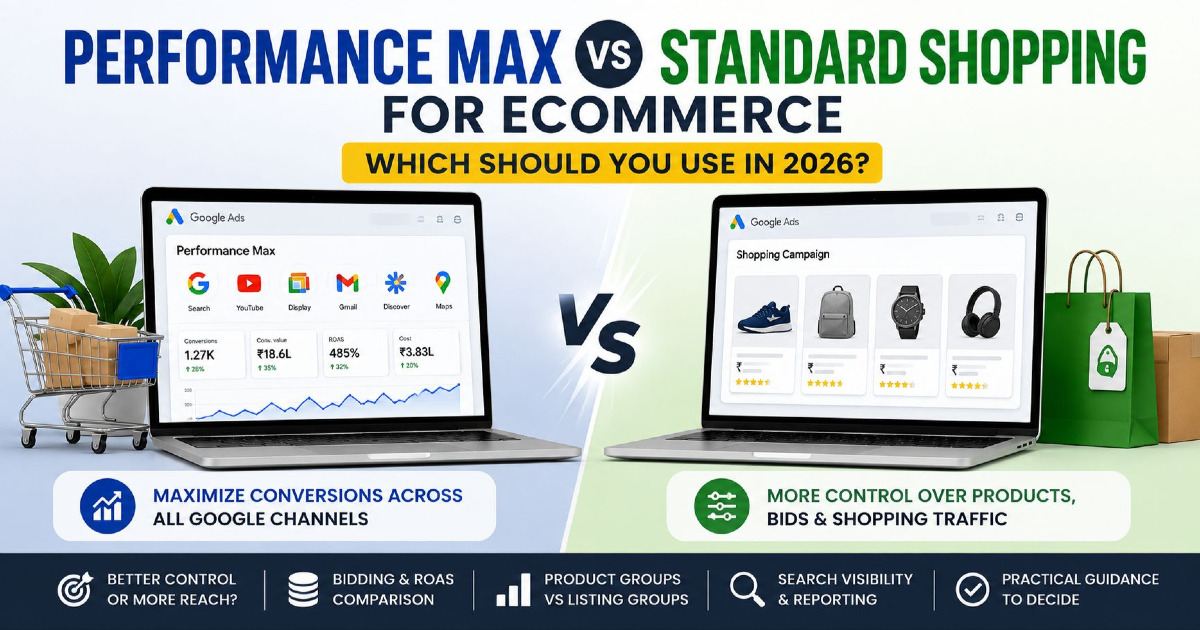
Most ecommerce accounts should run Search + Shopping (or PMax) together. Search captures specific keyword intent. Shopping and PMax capture visual product discovery. Together they cover the full demand spectrum. For when to use Performance Max and when to avoid it, see my Performance Max guide.
Common Mistakes That Waste Budget in Ecommerce Search Campaigns
- Sending all traffic to the homepage: Each ad group must point to the specific product or category page that matches the keyword. Homepage landing = high bounce rate = wasted spend.
- No negative keywords: Without negatives, 20–40% of your spend goes to irrelevant informational or job-related queries. Add negatives before launch AND review weekly.
- Too many keywords per ad group: If an ad group has 50+ keywords with different intents, the ad copy cannot be relevant to all of them. Split into tighter groups of 5–15 keywords.
- Wrong primary conversion: If both add-to-cart AND purchase are set as primary, Smart Bidding double-counts. Only purchase should be your primary conversion action for ecommerce.
- Not unchecking Search Partners and Display Network: These are checked by default when creating a new campaign. Uncheck them. They dilute your search data with lower-quality traffic from partner sites.
- Changing settings during learning phase: Any significant change — budget increase over 20%, bid strategy switch, ad copy edits — resets the learning phase. Give Smart Bidding a full 7 days of stable data before adjusting anything.
Need Help Setting Up Google Ads for Your Ecommerce Store?
If this feels overwhelming, or you would rather have an experienced person handle setup, optimisation, and ongoing management — I do exactly this for ecommerce brands. I manage Google Ads campaigns for ecommerce stores across India, USA, UK, Canada, and Australia, handling everything covered in this guide plus Shopping, Performance Max, measurement, and attribution.
Hire me as your Google Ads expert →
Or if you want to learn Google Ads hands-on with live campaigns, I offer Google Ads training in Surat.
FAQ — Google Ads Search Campaigns for Ecommerce
How much budget do I need to start a search campaign for ecommerce?
Start with a daily budget that allows 10–15 clicks per day. For product keywords in India, CPCs typically range ₹15–30, so ₹500–1,000 per day per campaign is a reasonable starting point. For international markets, $30–50/day is a good baseline. You need at least 2–4 weeks of data before making performance judgments. Do not expect profitability in week one — the algorithm needs time to learn.
Should I use broad match or phrase match for ecommerce keywords?
Start with phrase match. It gives you enough volume while maintaining relevance. Add exact match for your top 3–5 converting keywords. Introduce broad match only after you have 30+ conversions per month and active Smart Bidding — broad match without conversion data is a budget drain because Google has no signal to filter irrelevant queries.
Should I run search campaigns alongside Shopping or Performance Max?
Yes. Search campaigns and Shopping or PMax serve different functions. Search captures specific keyword intent where users type exactly what they want to buy. Shopping captures visual product discovery with images and prices. Together they cover more of the purchase journey. Most profitable ecommerce accounts run both campaign types simultaneously.
How often should I review search terms?
Weekly — at minimum. Search term reviews are the single most impactful ongoing optimisation task for search campaigns. Each week, add negatives for irrelevant queries, add new keywords for relevant queries you are not targeting, and flag high-spend zero-conversion terms for monitoring.
What bidding strategy should I use for ecommerce search campaigns?
Start with Maximize Conversions (no target) for the first 2–3 weeks. Switch to Maximize Conversion Value once you have 15–30 conversions. Set a Target ROAS after 50+ conversions with consistent revenue data. Do not start with Manual CPC in 2026 — Smart Bidding with conversion data outperforms manual bidding for ecommerce in nearly every scenario I have tested.
Why is my search campaign getting clicks but no sales?
Common causes: wrong landing page (homepage instead of category or product page), missing or broken conversion tracking, irrelevant keywords eating budget (check your search terms report), poor product page experience (slow load time, no trust signals, unclear pricing, complicated checkout), or targeting informational queries instead of purchase-intent queries.